Start with one shelf
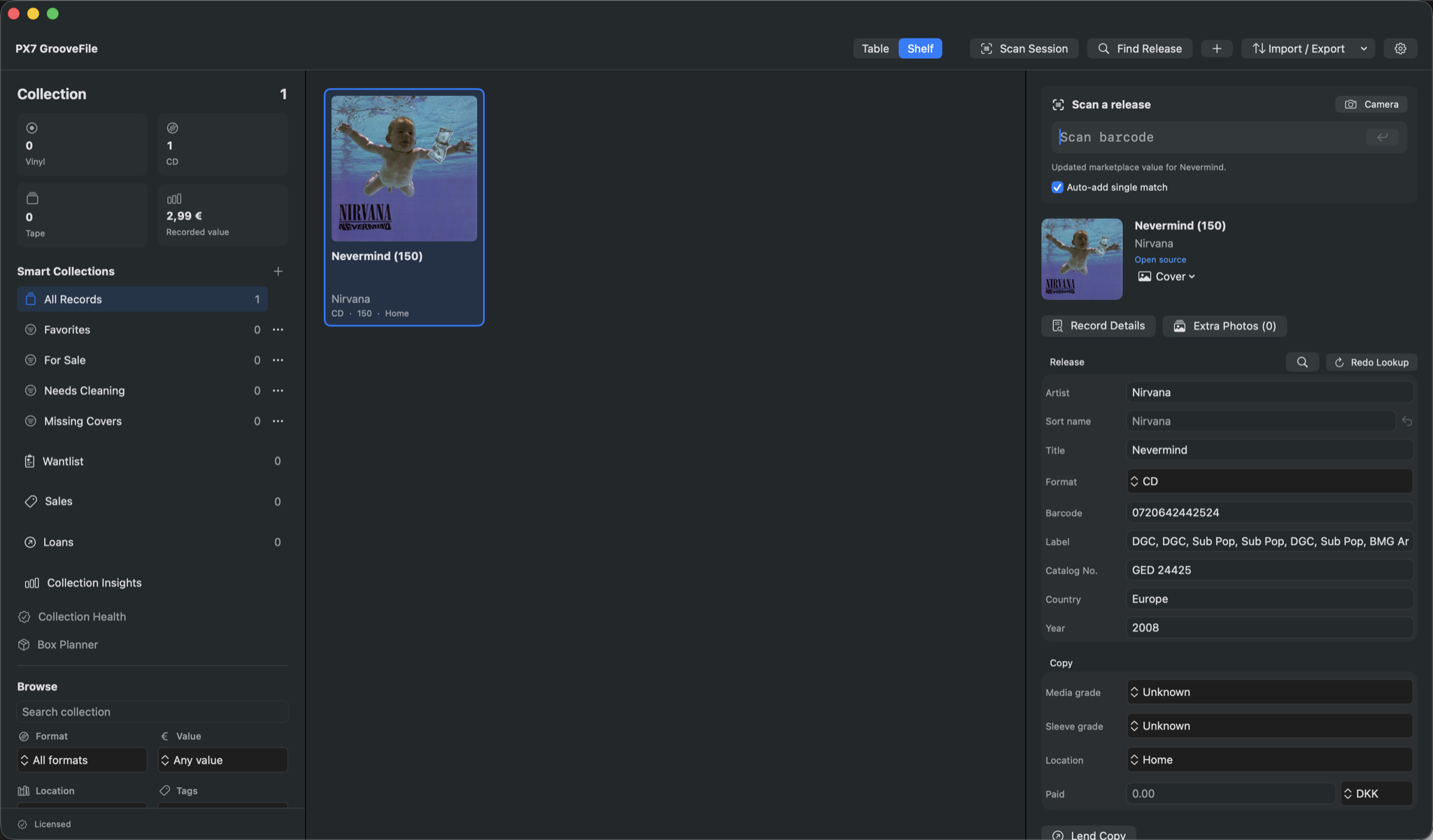
Take a manageable stack of CDs and give its shelf a consistent name, such as Living room / Shelf 2. Scan a barcode or search by artist, album title or catalogue number. Review the matching releases before adding your copy. You do not need to catalogue everything in one sitting.
Check the edition, not just the album title
A CD can have several regional editions and reissues. Compare the barcode, label, country and catalogue number with the packaging. A matching barcode is a starting point, not proof of the exact edition. For an older disc without a barcode, search the printed details or enter them manually.
Keep information about your copy
Record condition, location, tags and notes separately for each owned copy. This matters when you own a replacement disc, a box set and a second edition of the same album. Photos of the disc and packaging can preserve details that a generic cover image cannot.
Find a disc when you want to play it
Browse the cover-based Shelf View or search the table, then use the recorded location to retrieve the CD. Smart Collections retain useful filters. Export catalogue information as CSV or Markdown when you need to use it elsewhere. Catalogue exports are not a substitute for a full backup.
A catalogue, not a CD ripper
This workflow records what you own; it does not turn the audio on a CD into music files. Collection data is stored locally on your Mac, while release and artwork lookups use online services. MusicBrainz is supported; Discogs is optional and requires a personal access token.